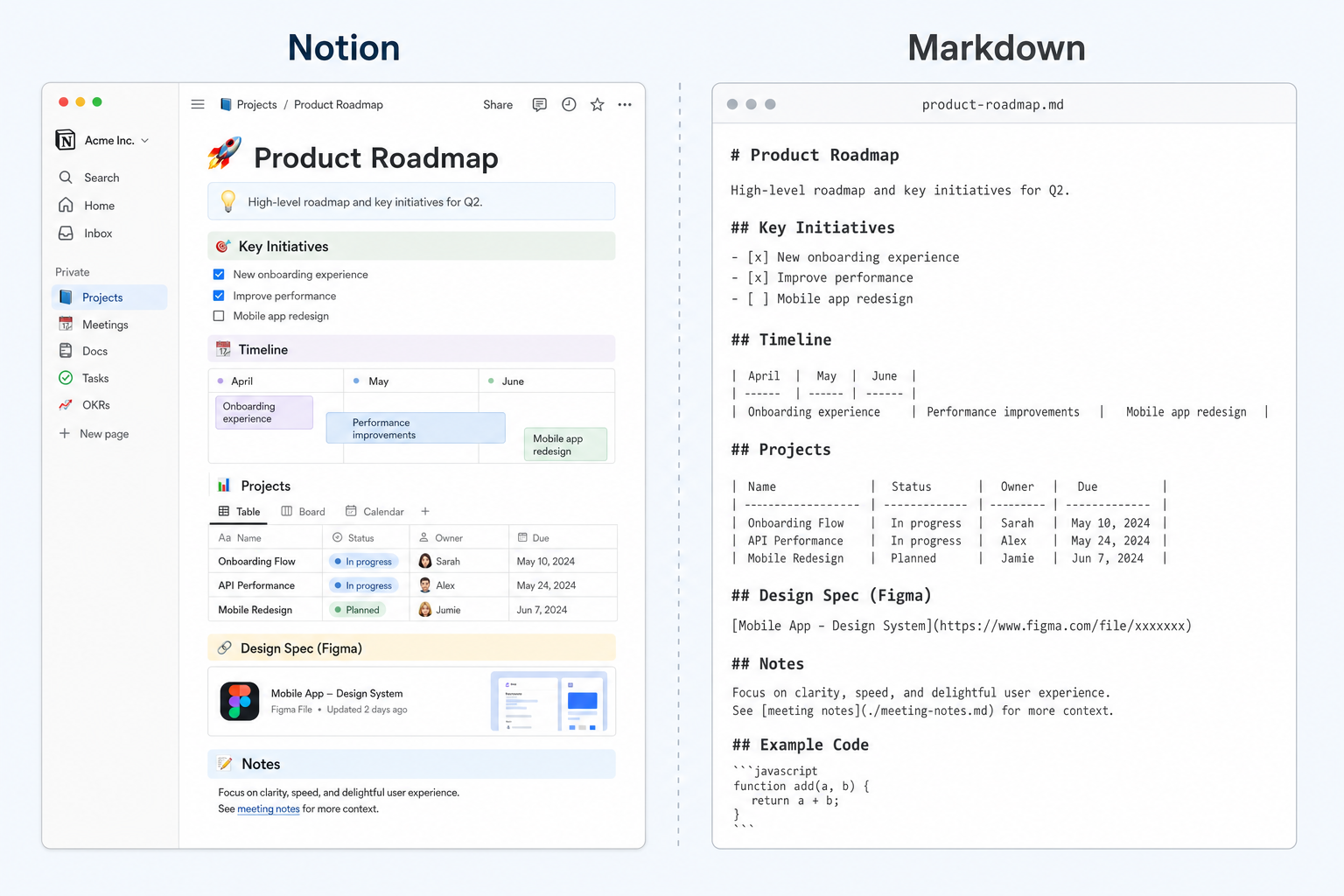
Notion to Markdown: Free Online Converter Guide
Quick Answer: The free Word Spinner Notion Page to Markdown Converter turns any public Notion page into clean Markdown. Paste a share URL, fetch the content, and download a ready .md file. No signup, no server upload, no CLI tools. The whole process runs in your browser. Use it when you need Notion documentation, meeting notes, product specs, or research archives in a portable format that works with GitHub, static site generators, CMS imports, and AI tools.
Converting a Notion page to Markdown saves hours of manual reformatting. The right method depends on whether you need a single page, a full workspace, or content you already have open in a browser.
What is Notion to Markdown?
Notion to Markdown is the process of converting a Notion page into Markdown syntax. Notion stores content in its own block-based format with databases, relations, and rich embeds. Markdown is a plain-text format that works across GitHub, static sites, documentation tools, and most CMS platforms.
The difference matters. Notion excels at collaborative editing, databases, and flexible layouts. But when you need that content outside Notion - in a Git repo, a Hugo or Jekyll site, an AI context window, or a WordPress post - Markdown is the transport format most tools expect.
According to the CommonMark specification, Markdown is designed to be easy to write and read in raw form. That portability makes Notion-to-Markdown conversion useful for anyone who creates content inside Notion but publishes or stores it elsewhere.
How does the free Notion to Markdown converter work?
The fastest way to convert a Notion page to Markdown is the free Notion Page to Markdown Converter. No install, no account, no server upload.
Step 1: Share the Notion page
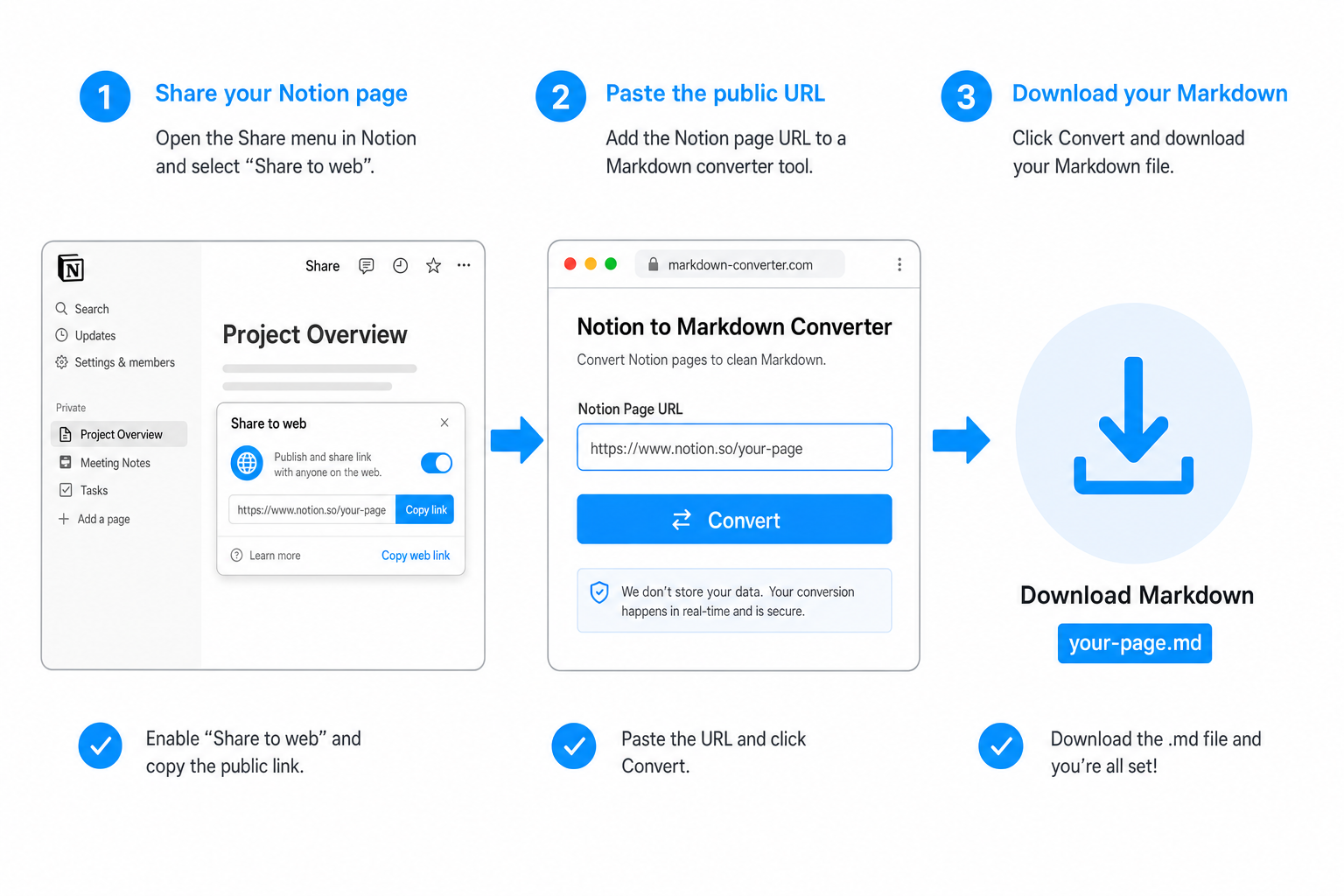
Open the Notion page you want to convert. Click Share in the top-right corner and enable Share to web. Copy the public share link. Notion generates a URL that looks like notion.so/Your-Page-Name-123abc.
Only public pages work with this method. Private or password-protected pages cannot be fetched by any third-party tool.
Step 2: Paste and convert
Open the free Notion Page to Markdown Converter. Paste the share URL into the input field. The tool fetches the page content and converts every supported block into equivalent Markdown.
Block types that convert cleanly:
- Headings become
#,##, or###headings. - Bullet and numbered lists become Markdown list syntax.
- Code blocks become fenced code blocks with the language label.
- Images and links stay as standard Markdown
![]()and[]()syntax. - Tables become pipe-table format.
- To-do lists become checkboxes with
[ ]and[x].
Step 3: Copy or download
Once the conversion completes, preview the output in the live Markdown tab. Copy the result to your clipboard or download the .md file. The entire process runs client-side. No part of your content is sent to a server.
How do you export Notion pages directly?
Notion includes a built-in export feature that downloads pages as Markdown plus CSV. Go to Settings > Export and choose Markdown & CSV as the format.
What exports well: headings, bullet lists, numbered lists, code blocks, inline code, blockquotes, links, and basic tables all convert reliably. Images are included as references in a separate /images/ folder inside the ZIP archive.
What does not export well: database views become flat CSV tables instead of their original board, calendar, or gallery layout. Synced blocks expand to their current content. Embedded PDFs and videos become plain links. Column layouts flatten into sequential blocks.
The built-in export is free and works for any workspace. But it exports entire pages or workspaces - you cannot pick a single block. And there is no live preview of the Markdown before download.
Can you paste Notion content as Markdown?
For short notes or simple text, you can skip converters entirely. Select all the content in a Notion page, copy it, and paste it into a Markdown editor. The clipboard includes rich text formatting that many editors convert to basic Markdown.
This works well for quick grabs under 100 words. But it loses formatting depth fast. Nested lists, code blocks with language tags, image positioning, and table alignment all degrade or disappear in the paste step.
Use paste to Markdown when speed matters more than precision. For anything with structure, use the dedicated converter or direct export instead.
What formatting carries over from Notion to Markdown?
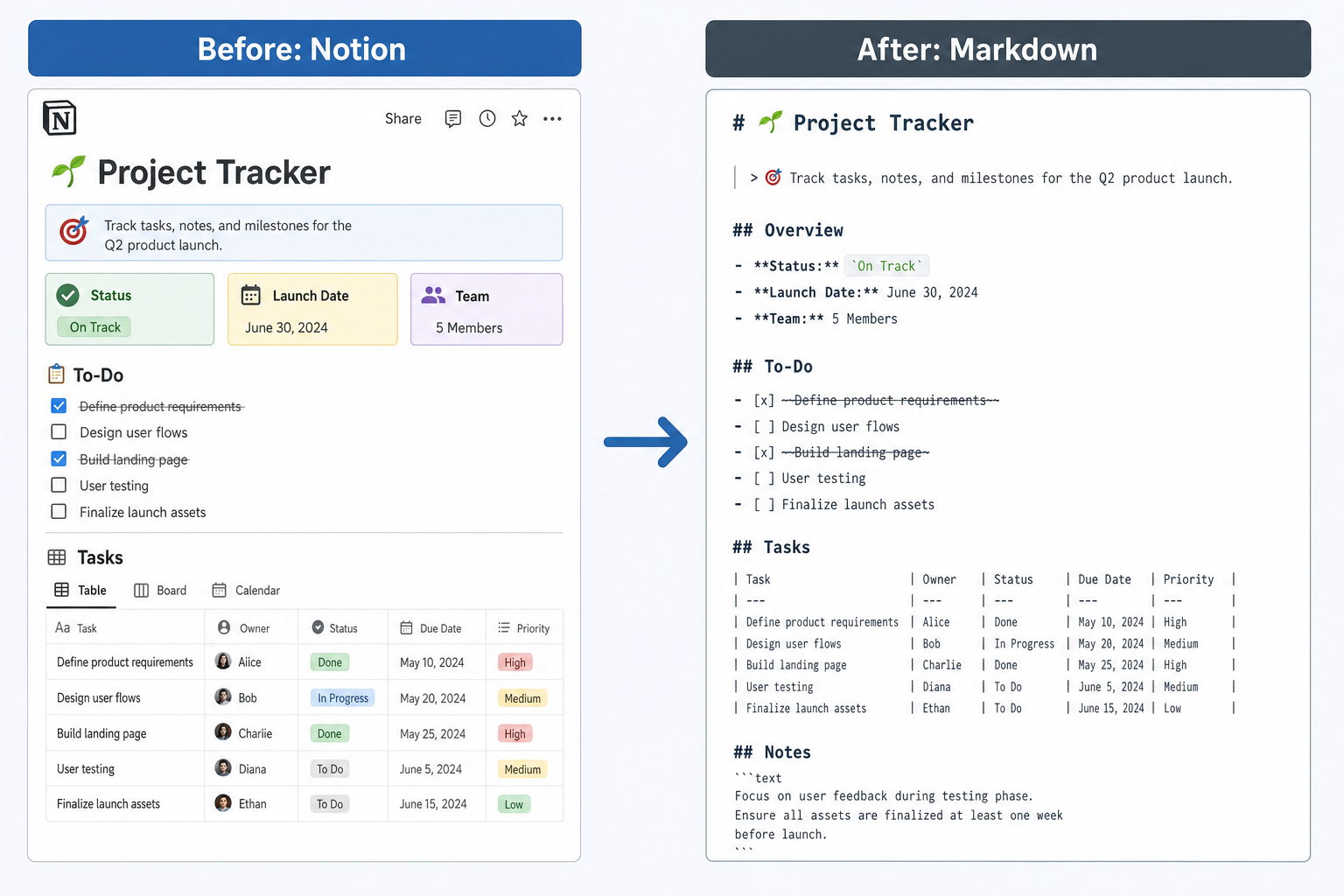
Notion supports over 30 block types, but not all convert to Markdown equally. Understanding what carries over and what breaks helps you choose the right conversion method for your content.
| Notion feature | Carries over? | Notes |
|---|---|---|
| H1-H3 headings | Yes | Maps to # ## ### |
| Bullet / numbered lists | Yes | Standard Markdown list syntax |
| To-do items | Yes | [ ] and [x] checkboxes |
| Code blocks | Yes | Fenced with language label |
| Inline code | Yes | Backtick syntax |
| Blockquotes | Yes | > quote blocks |
| Images | Yes | As  references |
| External links | Yes | [text](url) format |
| Basic tables | Yes | Pipe-table format |
| Callout blocks | Yes | As blockquote with bold label |
| Divider lines | Yes | --- horizontal rule |
| Toggle blocks | Yes | Expanded content |
| Database / Board views | Partial | Flat tables, not visual layout |
| Synced blocks | Partial | Current content, no live sync |
| Embedded PDFs / Videos | Partial | Become plain URLs |
| Column layouts | No | Flattened into sequential blocks |
| Equation blocks | No | Surrounding text only |
| Notion AI content | Yes | Rendered output text, not AI state |
How do you use Notion Markdown with AI tools?
LLMs like ChatGPT, Claude, and Perplexity read Markdown natively. Structured content with headings, lists, and code fences parses more reliably than raw HTML exports or pasted rich text.
The workflow is simple. Convert a Notion page to Markdown using the free converter. Copy the output. Paste it into your AI tool of choice as context. The AI tool interprets the headings as topic boundaries, the lists as grouped items, and the code blocks as executable or reference code. This structured parsing leads to more accurate AI responses because the model can identify content hierarchy and relationships directly from the Markdown formatting.
This is especially useful for:
- Feeding product documentation into an AI assistant for customer support queries. Markdown keeps code examples readable and section boundaries clear, so the assistant retrieves the right context.
- Pasting research notes as structured context for long-form AI writing. Headings become chapter boundaries, and lists become enumerable evidence points.
- Providing meeting notes and action items for AI summarization. The Markdown checklist syntax preserves task ownership and status.
For richer AI integration, combine the Notion converter with Paste to Markdown to clean up any HTML exports, or use HTML to Markdown if you export from Notion as HTML first. You can also convert Google Docs to Markdown using the same free tool family.
According to the Notion API guide on Markdown content, the platform's block-based data model maps directly to Markdown structure, which is why converters that read the API produce cleaner output than general HTML-to-Markdown tools.
What are the best alternatives to Notion to Markdown converters?
The free online converter handles single-page conversions instantly. For other scenarios, these alternatives work well:
- notion-to-md CLI - Open-source Node.js library on GitHub (soukvinator/notion-to-md). Best for developers who need scripted, automated batch conversion in a CI pipeline or build step.
- Obsidian import - Obsidian includes native Notion import that converts pages into Obsidian-flavored Markdown. Best for users migrating from Notion to Obsidian as their primary note-taking tool.
- Word Spinner HTML to Markdown - The HTML to Markdown Converter handles cases where you exported from Notion as HTML first.
- Manual copy-paste - Best for a single short page under 100 words where setting up a converter takes longer than rewriting the content.
Frequently Asked Questions
Does Notion support Markdown natively?
Notion uses its own block-based editor, not native Markdown syntax. However, Notion can export pages as Markdown plus CSV, and you can paste Markdown content into individual Notion blocks. For real-time conversion from a share URL, the free online converter handles the translation step.
Can I convert a private Notion page to Markdown?
Only public share URLs work with online converters. Private or password-protected pages cannot be fetched by third-party tools. To convert a private page, share it publicly first or use Notion's built-in export feature from Settings.
Will images transfer when converting Notion to Markdown?
With the Word Spinner converter, inline images are captured as Markdown  references. The native Notion export includes images in a separate /images/ folder inside the ZIP archive. Image URLs from Notion may use signed links that expire, so verify long-term image rendering if you plan to host the Markdown output permanently.
How do I convert an entire Notion workspace?
Use Notion's built-in export at Settings > Export. Choose Markdown & CSV as the format. Notion downloads a ZIP archive containing all pages as individual .md files plus a CSV for each database. The free online converter handles one page at a time, which is faster for single pages but impractical for full workspace migration.
Is the Word Spinner Notion Page to Markdown Converter free?
Yes. All tools on tools.word-spinner.com are completely free. No signup, no credit card, no usage limits. The conversion happens entirely in your browser, so your content stays private.